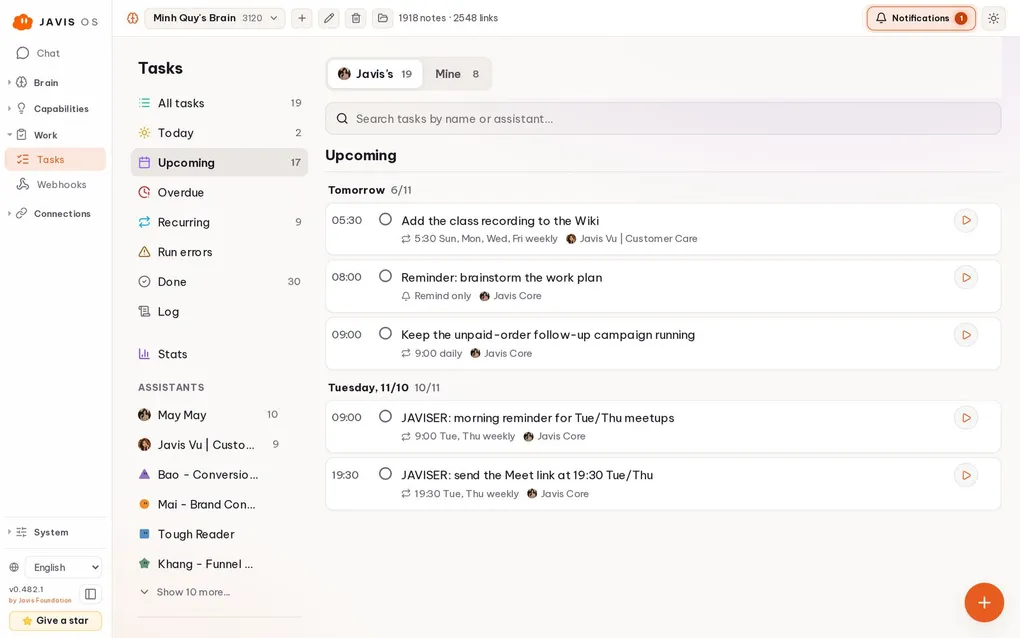
An AI assistant that only answers when you ask delivers just half its value. The other half is working while you are away: checking orders every few hours, sending a revenue report in the morning, and reviewing advertising figures in the evening.
Javis OS has three tools for this. Choosing the right one matters most.
Three tools for three kinds of work
| You want | Use | Example |
|---|---|---|
| A task that runs once, in the background | Tasks (Kanban) | “Compile this week’s 20 customer reviews into a report” |
| Work done at a fixed time | Reminders | “Send yesterday’s revenue at 7 a.m. every day” |
| Work that repeats at intervals, doing one part each time | Loop | “Check for new orders every 2 hours and flag any that have not been confirmed” |
A quick way to tell them apart: a specific time (“7 a.m.”, “Monday”) means a reminder. An interval (“every 2 hours”) means a loop. Work that only needs doing once belongs in Tasks.
Most everyday questions do not need any of the three: Javis can simply answer them. Javis is already instructed to do this, so it always chooses the smallest tool that can get the job done.
Tasks (Kanban): give AI a goal and let it handle the rest
The Tasks page is not a Trello board for you to drag cards around. You write a sentence describing your goal, then:
- AI writes the specification: it turns your sentence into clear requirements, with a checklist of completion criteria.
- The task joins the queue, and a worker picks it up when its turn comes and runs it in the background.
- Acceptance review: another AI pass checks the result against each criterion. If it falls short, the task stops and waits for you, with an explanation.
- Results return to the place where you assigned the work, whether that was web chat or Telegram.
An easy detail to miss: a new brain’s task board is set to Off. Tasks only run automatically after you switch to AI autonomous operation at the top of the Tasks page. Until then, they simply wait in the queue.
You can also assign work through chat: “Background task: read the price quote in the brain, compare it with competitors’ prices, and write a comparison table.” Javis adds the task to the queue and tells you where the results will arrive.
Reminders: the right work at the right time
Reminders run at a specified time: “in 30 minutes”, “8:30 tonight”, or on a recurring schedule such as “7 a.m. every day”.
The easiest way to create one is to say it in chat:
Every morning at 7, summarize yesterday’s revenue, compare it with the day before, and send it to me on Telegram.
Before creating it, Javis checks what the task will need when it runs: whether the data source (such as POS) is connected, and whether there is a channel for sending the report. If anything is missing, Javis explains what it is and asks whether you want to connect it first or create the reminder anyway. This prevents a reminder from silently failing every day without anyone knowing.
Loop: a cycle that runs and checks itself
A loop wakes up every N minutes, does exactly one part of the work, checks its own result, and stops. It keeps running until you turn it off. Each loop is a .md file in the brain, which you can edit directly.
You can create multiple loops, but they run one after another, without overlapping, so their actual start times can differ from the interval by a few dozen seconds.
Loops created through chat are off by default: review the description on the Recurring Tasks page before enabling one.
Three permission levels: choose what the work needs
Loops and reminders run with one of three permission levels:
- Full access (the default): performs real actions in external systems without asking again, such as creating orders, publishing posts, or sending messages.
- Autonomous (drafts): reads data and writes draft files in the brain, without taking any external actions.
- Suggest (read only): only reads, then offers 2-3 suggested actions.
Full access runs on schedule without anyone approving each step, so write a task description with a clear scope: what to do, what not to do, and who should receive it. For new or uncertain work, start with Suggest for a few days before granting more access.
Results always reach you
Every completed loop iteration and task sends results back to the person who assigned it, through the channel they used. Whatever the channel, the result also leaves a message in the dashboard inbox (the bell icon), so nothing gets lost.
One thing Javis is explicitly instructed to do: never make empty promises such as “I’ll take a look and get back to you.” It either does the work in the current turn or queues it as a background task and tells you exactly where the results will arrive.
Your phone is the most convenient place to receive reports. See connecting Javis OS to Telegram to set it up in 5 minutes.